Have you ever wonder how to run more than one instance of Skype logged in with different account at the same time on same machine.
Here I am telling you how? Follow these simple steps below:
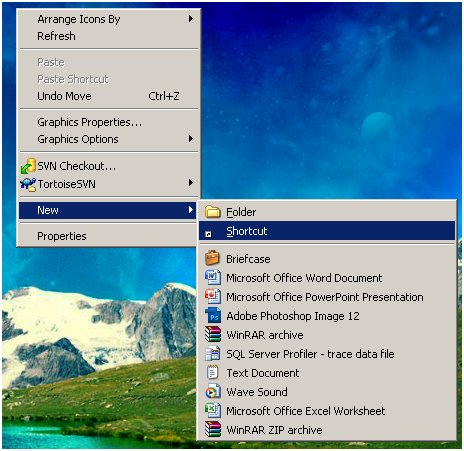
Right Click on your Desktop and choose NewàShortcut
Will present you below screen:
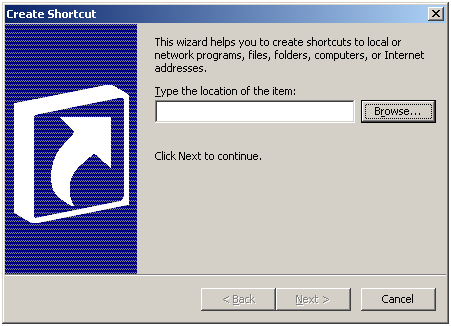
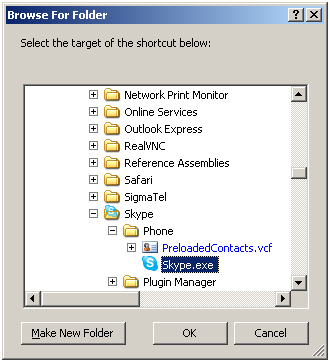
Now click on Browse Button and choose My ComputeràC:àProgram FilesàSkypeàPhoneàSkype.exe as below:
And click OK Button will show below dialog:
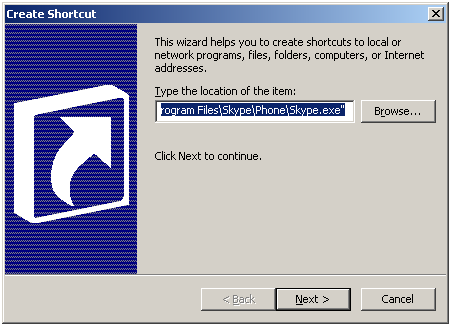
Place cursor after double quotation mark and type /secondary and click on Next as below:
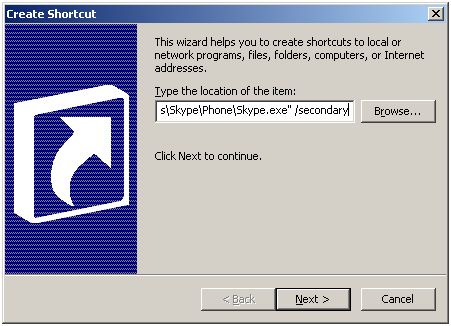
Will result in below dialog, Type a name for this shortcut as "Skype Multinstance" you can give any name of your choice.
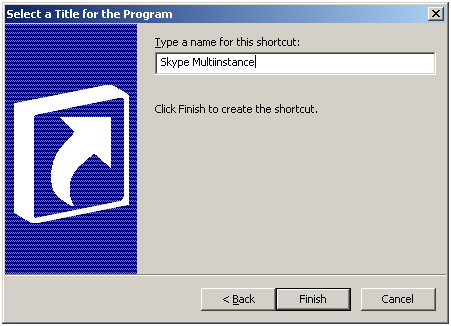
Now click on finish. It will create an icon on your Desktop as below:

Now Double click on it and login with different login credentials other than already running.

Enter another login credentials and click on "Sign in" button you will find multiple instance of Skype are running and will display on taskbar as below:

Now you can log in to multiple Skype account and run more than one instance at the same time by clicking on shortcut created any number of time.
Cheers !!!
e8c06ded-1fbe-4b57-8830-a07a5d483631|0|.0